
.
3.0 Dual-Layer
100% Device Coverage
Kibosh Internet Security works at the gateway to your Internet so that every device is always protected and monitored – no software to install or manage.
Malware / Phishing protection in two layers:
Layer 1 = The Blocking of Malware from outside your network (aka the ‘WAN’) trying to get in.
Layer 2 = The monitoring for Malware infections from inside your network (aka the ‘LAN’) trying to get out.
What is Malware?
Malware is a piece of code designed to cause harm in one of a few ways:
- Steal your personal data (passwords, CC #’s, etc).
- Destroy your data.
- Encrypt and hold your data for ransom.
How does one get infected with Malware?
There are 4 primary channels:
- Phishing: A cleverly crafted email with a link to an infected website
- Drive-bye download – you’re crusing the Internet and land on an infected website
- You download and install an app that has malware payload
- DNS hijacking – you think you’re on your normal banking website, but in fact your on a malware-infected clone
Kibosh’s dual-layer Malware protects you from # 1 and #2 by blocking the bad sites before you can be infected (layer 1), and will tell you if #3 has happened on any device on your network (layer 2).
Due to the Kibosh infrastructures inherent privacy, #4 is impossible.
How Kibosh Malware Protection Works:
Kibosh blocks the Malware infected website before it can be downloaded (layer 1) – and then tells you about in in your DNS Portal HUD (layer 2).
Every 15 minutes your DNS Portal HUD will be updated with any Malware detections – which have all been blocked.
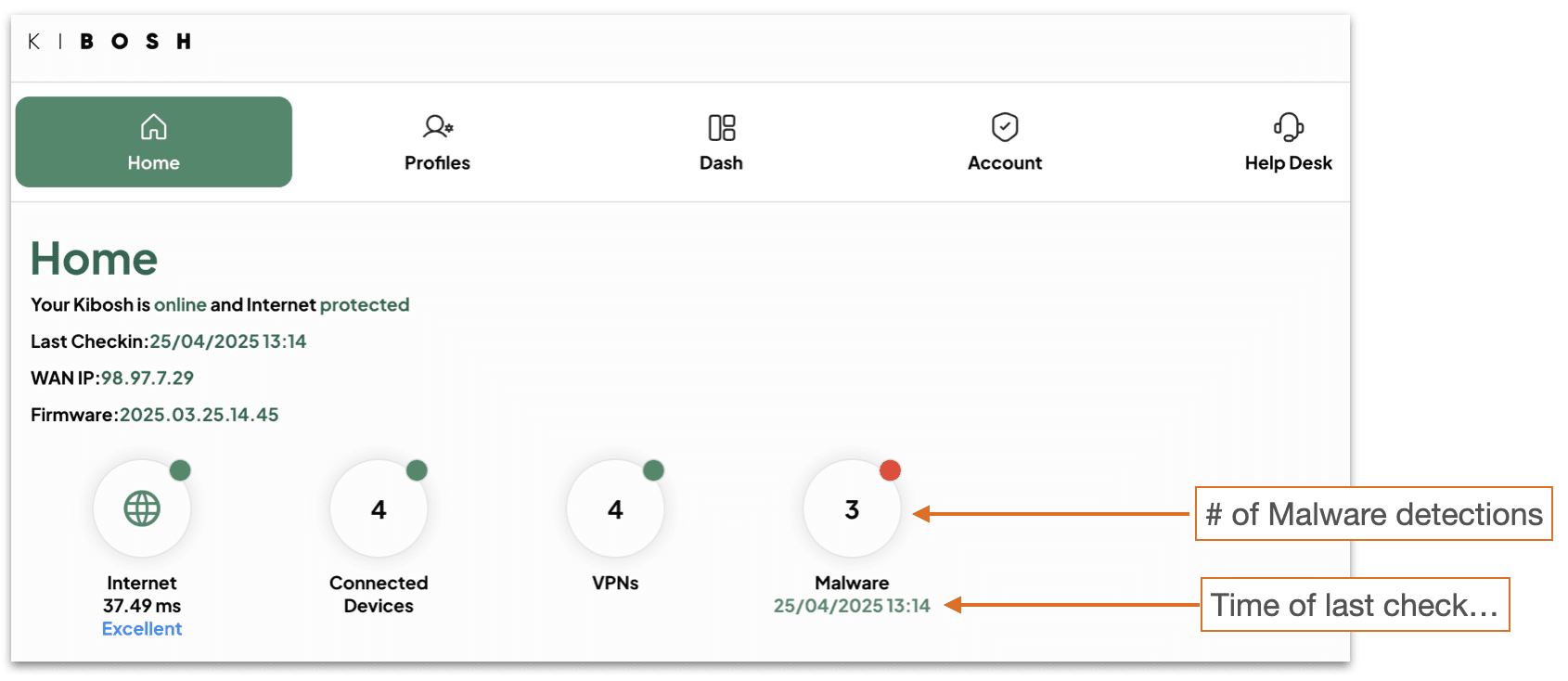
Tap / Click on the Malware HUD:
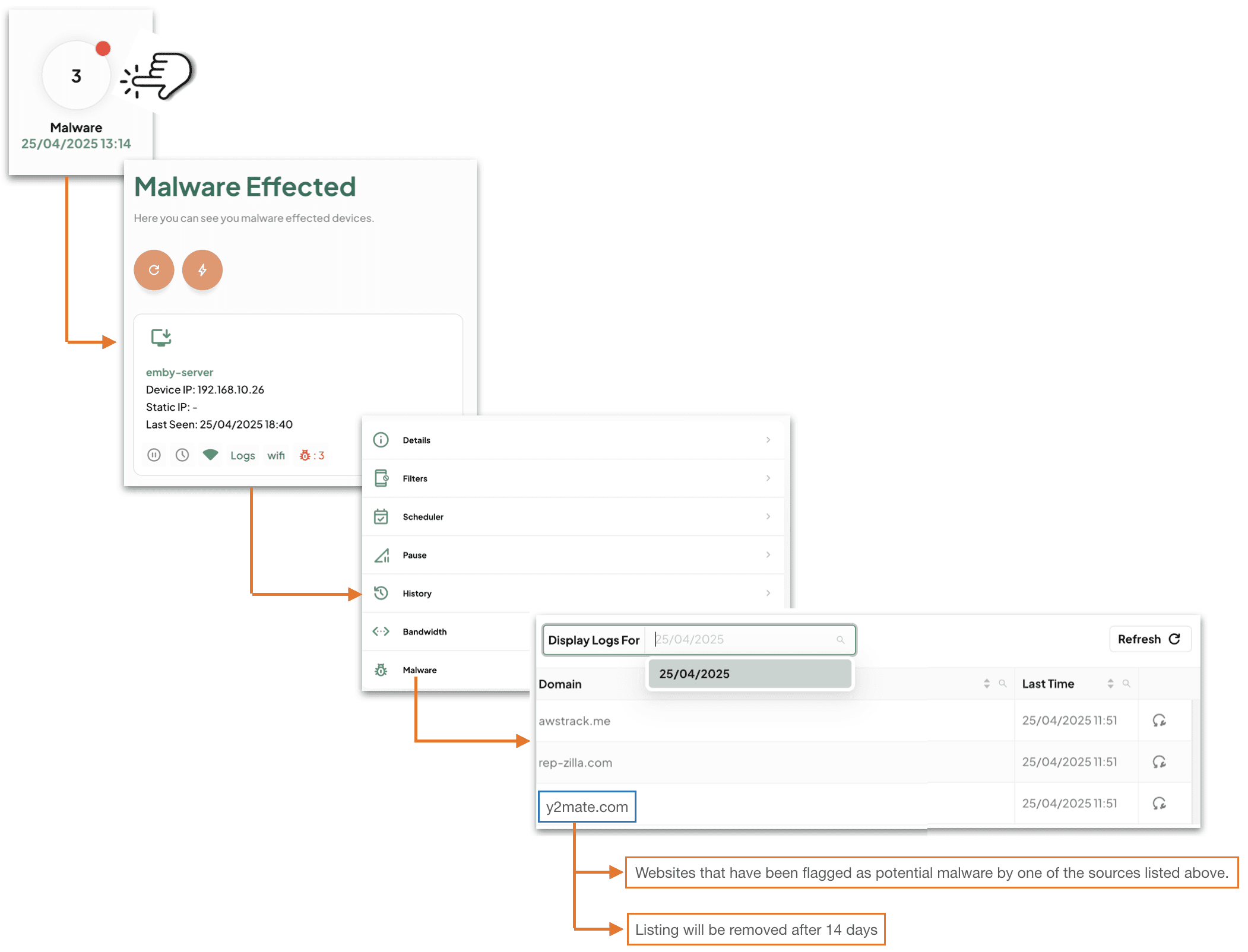
In summary: this device ’emby-server’ is requesting a website(s) that have been blocked as malware. If this keeps happening every day, then you most likely have malware on the device ’emby-server’.
How to read your DNS Portal HUD:
Layer 1 will block the Malware by default – you need to do nothing.
Layer 2 will tell you that a Malware site has been blocked – you need to make a decision (action / no-action).

Glossary: ==========
- Hit = a single website blocked as malware related, that this device has tried to access.
- NOTE: usually unbeknownst to the user while opening other sites.
- Infection = many many hits on a single device.
- Detection = a website blocked as malware related.
You will need to decide to take action or not.
How to decipher:
- If you see a few hits on this device, and few on that one – no worries this is normal.
- Flagged hits are stored in History for up to two weeks on the device(s) so you can look and find patterns.
- If you see many hits on a single device – then you should take a closer look.
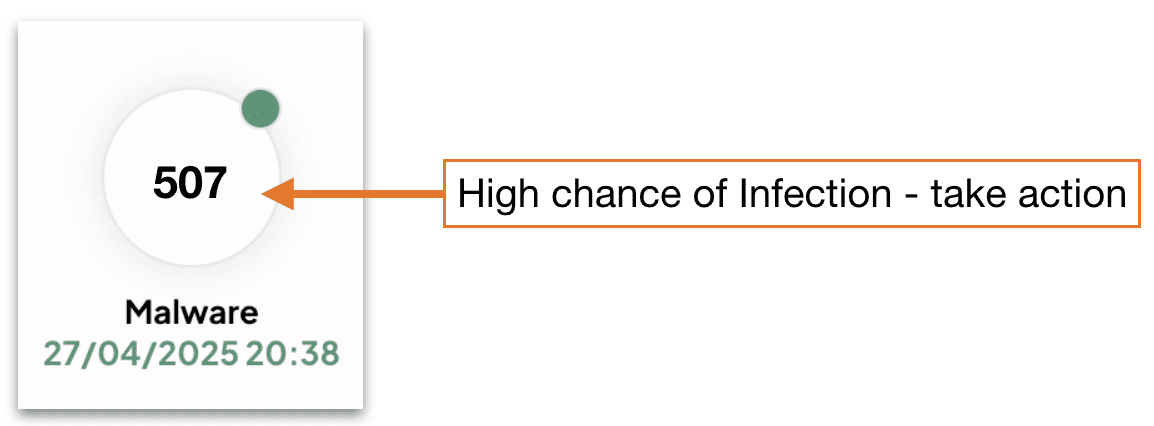
- If you see hundreds of hits on a single device – there is little doubt this device is infected – isolate and troubleshoot.
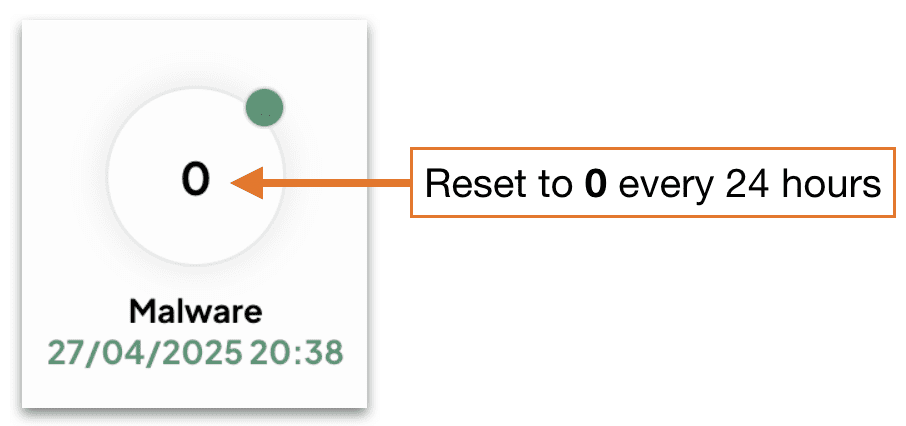
- After 24 hours the DNS Portal HUD reset to zero:
Malware Hits Action Log:
A malware hit from time to time is OK as most are ad / tracking related.
A device that is getting flagged daily with malware hits – this device might need closer inspection.
A device with many malware hits, like over 50, every day – this device has malware and you will need to deal with it asap (see How to Deal with Malware infection).
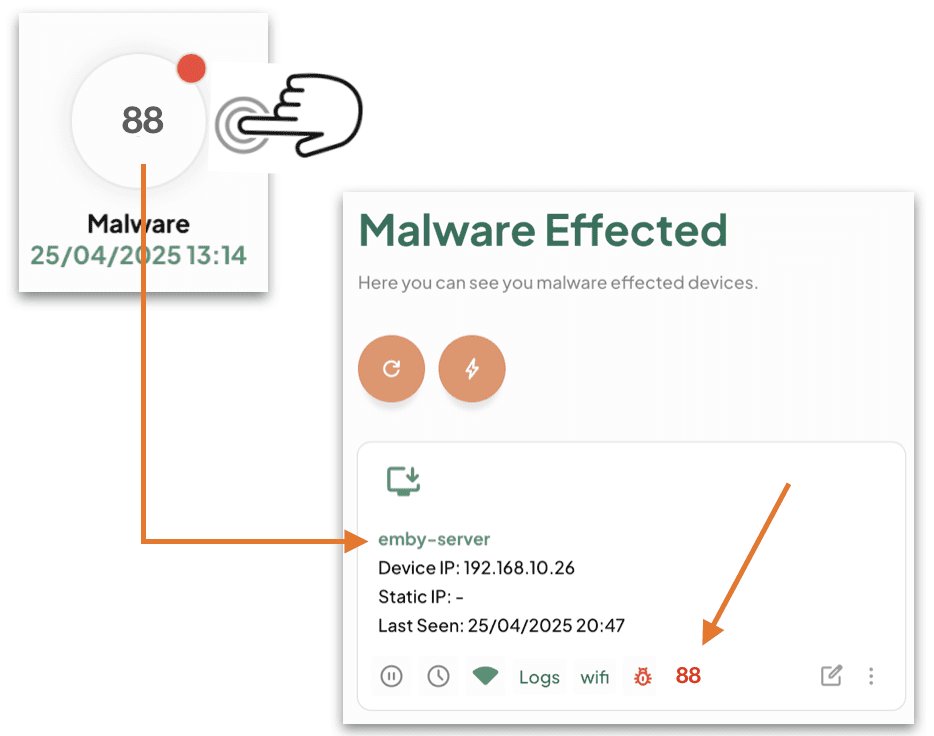
Troubleshooting Malware Infections:
Layer 1 will block the Malware site before it can load.
Layer 2 will inform you that a Malware site has been blocked and on what device(s).
TIPS:
- Always look at a malware hit (aka website) – look at the domain part as this will tell you what the website is, and you can do a little research on what the site does. In most scenarios it will be marketing / tracking related.
Most of the time you’ll have just a few hits on a device here and there. These are 99% of the time marketing and / or tracking related websites. In general, this is not indicative of a Malware infection.
If however, you have a device(s) with many Malware hits – then you most likely have a problem.
How to confirm Malware a infection:
- Check your Kibosh Client Portal > Dash > Devices > Malware logs.
- Go to Malware Bytes and install their Free Malware Scanner (macOS / Windows).
- Do not subscribe or give your CC info yet – for now you’re just scanning.
How to recover Malware infection (in order):
- Remove the infected device(s) from internet access
- Q: can I use filter rules to block inet access on this device?
- A: yes, but this will not protect all the devices on your LAN, so any device infected must be isolated from any network access.
- Now you need to clean:
- iPhone / Android – make a backup and reset to factory.
- macOS – backup your data and do a factory reset:
- Power down your Mac
- Power back on – holding down the R + COMMAND keys to initiate
- You will need to attach a physical Ethernet cable to the Kibosh LAN to complete this step.
- The macOS Utilities window will pop up:
- Choose Reinstall macOS
- Windows – unless you’ve turned on snapshot restore feature, you’ll need the Windows 10/11 install media.
- Boot off the install media, and re-install Windows.
Updated: 10-31-25
.
Where do you get your list of malware sites to block?
Kibosh Malware Blocker (KMB) doesn't have a single list of malware domains, but uses various methods to identify and block them, including internal detection tools, and external DNS-based blacklists (DNSBLs) like those from Spamhaus, Spamcop, and Mailspike, for example.
Why is malware protection at the gateway so valuable?
The value of an accurate DNS Malware Firewall at the gateway to the internet is hard to explain, so we'll use an anecdote.
Mr. Sir, a SysAdmin for a mid-size company, was going through this inbox one morning, weeding out all the spam like he does, every, day.
One of the emails was from ATT Business and instead of manually going to att.com in a browser and logging in (like he teaches his users to do!), he clicked the link in the email:

A malware infection is incredibly destructive and expensive (costing time + money).
Essentially, if you get malware, you'll need to wipe the hard drive and start over.
How valuable was Kibosh to Mr. Sir (and the company) in this scenario?
How do I recover from a malware infection?
- Remove the infected device(s) from internet access
- Q: can I use filter rules to block inet access on this device?
- A: yes, but this will not protect all the devices on your LAN, so any device infected must be isolated from any network access.
- Now you need to clean:
- iPhone / Android – restore a backup (hopefully) or Reset to Factory
- macOS – restore from backup (hopefully) or backup your data and do a factory reset:
- Factory reset
- Power down your Mac
- Power back on – holding down the R + COMMAND keys to initiate
- You will need to attach a physical Ethernet cable to the Kibosh LAN to complete this step.
- The macOS Utilities window will pop up:
- Choose Reinstall macOS
- Factory reset
- Windows – unless you’ve turned on snapshot restore feature, you’ll need the Windows 10/11 install media.
- Boot off the install media, and re-install Windows.
I think I have a malware infection - how can I get additional confirmation?
- Check your Kibosh Client Portal > Dash > Devices > Malware logs.
- Go to Malware Bytes and install their Free Malware Scanner (macOS / Windows).
- Do not subscribe or give your CC info yet – for now you’re just scanning.
Kibosh will expose resident malware in a network - an anecdote
Kibosh is an Internet Security Service that has been in production for 15+ years, and it will block and expose any bad stuff resident on your network.
Which means, if you have any form of malware present on any of your devices, these will be blocked and exposed - usually by causing HTTPS browsing issues.
Issue:
Skylar installed a Kibosh Router and was very happy with the new internet overall.
However, on Sklyar's PC using the Chrome Browser, ever since Kibosh was installed accessing certain websites stopped working - always giving the annoying the 'Your connection is not private' error:

Skylar opened a Help Desk Ticket - asking why the Kibosh Router is blocking these sites? And included the URL of one of the sites that stopped working: htps://search.yahoo.com/search?fr=mcafee&type=E210US714G0&p=chem+made+clear
Resolution:
Skylar was asked to check Chrome to see what the default search engine was set to - and Skylar found that it been changed from Google to a shopping site - Skylar changed it back to Google, and then all the sites worked fine.
In other words, Skylar's Chrome had a browser-hijacker malware that Kibosh was now blocking - which was causing all the 'Your connection is not private' browsing errors.
Skylar was asked to install a second browser FireFox, and try to access those the same sites - and they all worked fine. More confirmation Chrome has been hijacked.
“Know that the answer to every problem, to every question, is within yourself.”